Terminal agent and chat
No windows, voice or avatar. Installed from source.
| Resource | Minimum | Recommended |
|---|---|---|
| RAM | 4 GB | 8 GB |
| CPU | 2 cores | 4 cores |
| Free disk | 2 GB | 4 GB |
Dedicated GPU: not required with a remote provider.
Kaoru talks with you, remembers context and stays with you through text, voice and a Live2D presence. It can also work as an agent: investigate your project or chain results across desktop apps, with a visible plan, permissions and checks.
Write to Kaoru in chat; it can reply with synthesized speech. The interface is available in English, Spanish and Japanese since v2.3.

Provisional minimums for using a remote AI provider. This starting point comes from one Linux x64 measurement and still needs validation on more devices and platforms.
No windows, voice or avatar. Installed from source.
| Resource | Minimum | Recommended |
|---|---|---|
| RAM | 4 GB | 8 GB |
| CPU | 2 cores | 4 cores |
| Free disk | 2 GB | 4 GB |
Dedicated GPU: not required with a remote provider.
Chat, memory and avatar; voice optional.
| Resource | Minimum | Recommended |
|---|---|---|
| RAM | 8 GB | 16 GB |
| CPU | 2 cores | 4 cores |
| Free disk | 3 GB | 5 GB |
Dedicated GPU: optional; graphics acceleration improves the avatar.
Voice, Chromium and local AI models may need more resources. A local model's GPU requirement depends on that model; no universal minimum has been measured yet.
See measurements and limits behind these provisional figures (Spanish)
Talk with Kaoru, ask it to remember what matters or delegate a multi-step task. It can help across your project and desktop; available capabilities depend on your provider, operating system and permissions.
Explore files, dependencies and LSP symbols to inform a plan. Read and edit code, run commands and use Git. The structural index is bounded; references and file contents still need confirmation through project tools.
In the smart workflow, a recognized mutation triggers configured verification. Compatible focused tests run before general checks; a skipped or failed result does not count as a passed test.
Objectives, steps and evidence can persist in SQLite so work can continue. If storage falls back to memory, that continuity does not survive application shutdown.
Local memory retrieves facts, preferences and episodes related to a conversation. You can ask Kaoru to forget memories. Retrieved context may be included in a request to your AI provider.
Edge TTS generates speech through a Microsoft service. Microphone input is not available in the current interface. The avatar supports configurable models and gestures.
Ask for several results, such as opening a report, creating a reminder and confirming both. Kaoru reviews the plan, asks for initial authorization and checks each result; missing evidence pauses the mission. Beta: tested with scripted scenarios, without external validation yet. Accessibility varies by app, and macOS lacks semantic parity.
GitHub and local plugins expand available tasks. Review each tool's permissions and origin before using it.
Configured sensors provide system and project signals. Proactivity evaluates context and policies to suggest help; it does not grant the model additional execution permissions.
Configure a compatible provider or a local endpoint. Quality, cost, vision and tool availability depend on the selected model and service.
Open a chat beside a terminal in the same project. Review selected or recent output before choosing to send it to the model; Kaoru does not send it automatically. Single-line shell snippets can be pasted or run after confirmation.
Ask for guidance, continue a conversation or delegate several results in a desktop mission. Kaoru interprets the request with your chosen model and shows its plan and tool activity in chat; permission and verification are decided outside the model.
Examine the workspace, find relevant paths and consult available symbols.
Break the objective into observable results and review whether any are missing.
A desktop mission asks for initial authorization; out-of-scope actions require their own permission.
Use tools and retain their results as evidence of the work.
Check each result in the environment; missing evidence pauses the mission with a pending step.
Configure permissions for your task and device. The application separates model proposals from the controls that authorize tools.
Allow, ask and deny rules automate specific operations, request confirmation or block them. Not every action displays a prompt: the active policy determines that.
Applications, browser, screen, pointer, keyboard, processes and camera have independent controls. The current camera tool checks status or opens the camera application; it does not take photos or record video.
Electron windows are isolated from direct Node access. Command isolation is a separate mechanism and depends on the system’s capabilities and configuration.
Kaoru captures a baseline for recognized changes. Recovery has limits: remote actions, arbitrary commands and external effects may not be reversible.
Web and integration results are treated as untrusted content in the flows that delimit them. These controls reduce the risk of malicious instructions; they do not guarantee immunity.
Memory and embeddings are stored locally. Prompts may leave the device for your chosen provider. The system keychain is used when available; configuration backups require care.
Start with conversation, one workspace and the permissions you need. Enable voice, memory or suggestions to suit your routine; you can change the Live2D model.
Declare repository rules, prepare dependencies and configure verification commands. Review diffs and results before integrating important changes.
Define what information may reach the provider, who manages credentials and which tools are allowed. The code license does not cover characters or replace your organization’s policies.
Actual project screenshots. Appearance varies with your model and configuration.
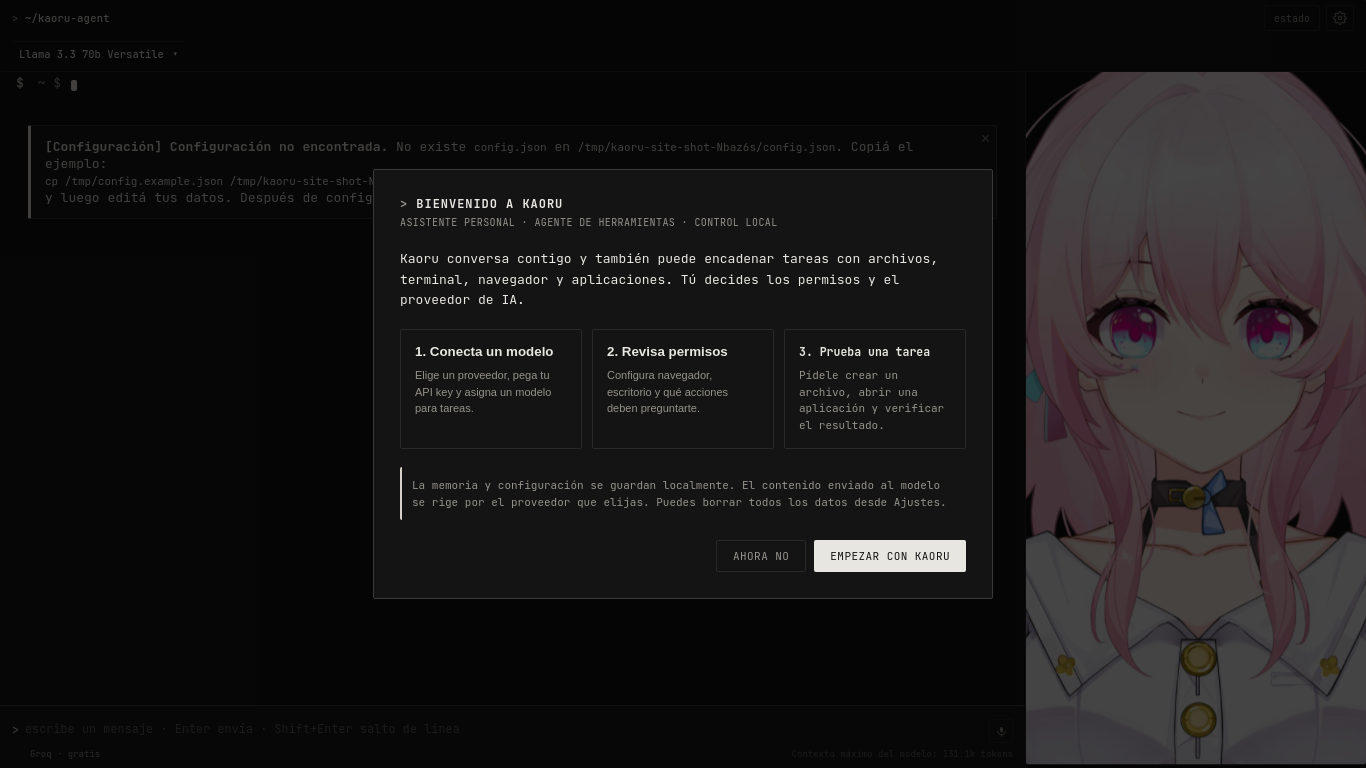
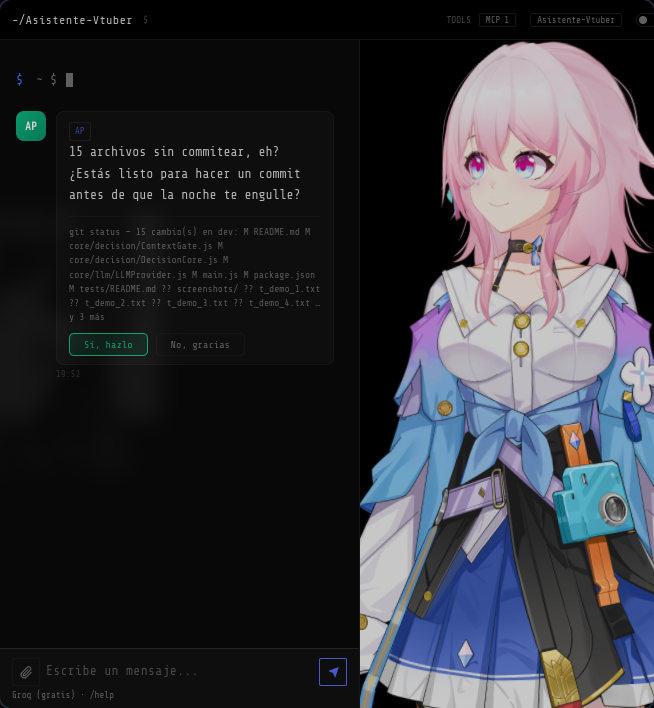
Choose a provider and a project. You can begin with a question or request a small result you can check. The guide covers installation, permissions and platform limits.